
How to invite co-planners to your event
A co-planner is someone you invite to help run the event — a partner, a sibling, or the wedding organizer. They join through an eight-character invite code, and you set their permissions person by person: view-only on the budget, manage guests, all the way to full access.
Prerequisites
- A Datella account with the event you want to share
- The invitee also has (or creates) a Datella account — free
Generate an invite code
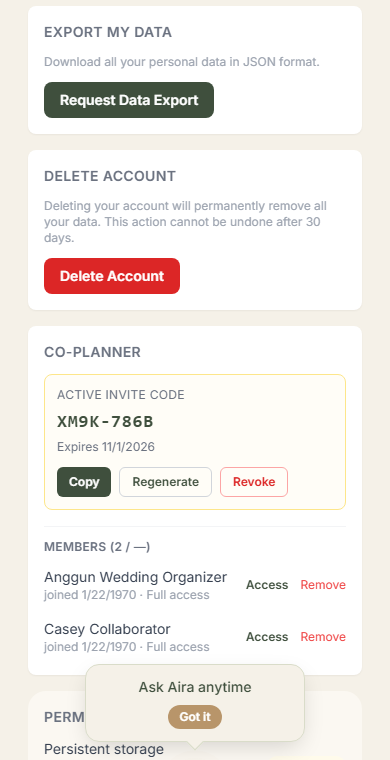
Open your profile from the photo at the top left, scroll to the "Co-Planner" section, and tap "+ Generate invite code". An eight-character code appears as XXXX-XXXX — uppercase letters and digits that are hard to mix up (no O, I, L, or zero). It stays valid for seven days; tapping "Regenerate" revokes the old code and issues a fresh one in a single step.
The invitee enters the code
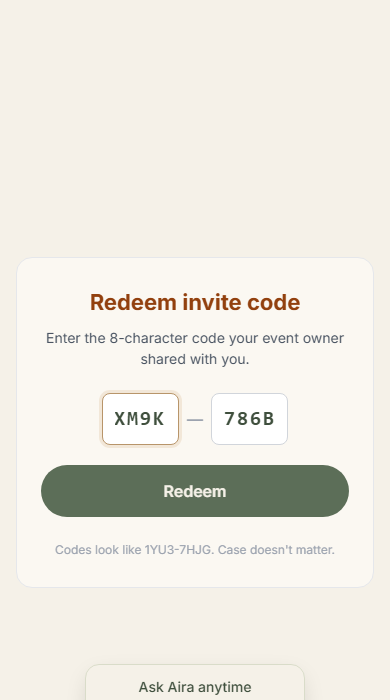
Send the code over any chat. On their side: sign in to Datella — a brand-new account works, and registration brings them straight back with the code pre-filled — then open the redeem link or tap "Join with an invite code" in the event switcher, type the code, and press "Redeem". On success, your event becomes their active event right away.
Set permissions per member
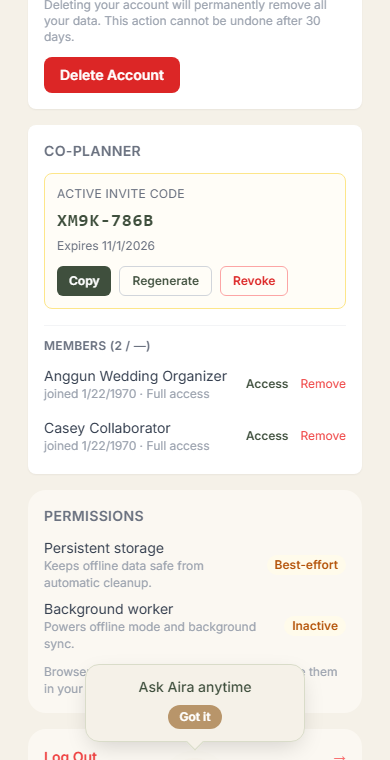
Every member in the "Members" list has an "Access" button that opens the permission matrix: a dozen-plus switches like "View budget", "Manage guests & RSVPs", "Check-in & scan", "Edit invitation", "Arrange table layout", up to "Draw raffle prizes". Some permissions carry others: managing the budget automatically includes viewing it. The "Full access" master switch turns everything on at once, for the people you truly trust.
Know what they can see
Permissions decide which pages appear in their navigation at all — without budget viewing, the Budget tab simply does not show. Two things stay yours alone: budget entries you mark "Sensitive data" are never visible to anyone but you, and only a co-planner on "Full access" sees the whole task list — anyone else sees only the tasks tagged to them.
Manage membership and the cap
The number of co-planners is capped across ALL your events combined: none on the free plan, 1, 5, or 10 on paid plans, with an add-on for 5 more. What counts is active members plus live codes — so revoke an unused code to free the slot. Removing a member from the list is separate from revoking an invite code: two different actions.
Common questions
The invite code expired — what now?
Regenerate it from the Co-Planner section of your profile — a new code is issued instantly and the old one dies automatically. Send the new code to whoever did not make it in time.
How many co-planners are free?
None on the free plan — co-planners start with a paid plan: First Light 1, Golden Hour 5, Starlit 10, and an add-on adds 5 more. The cap counts across all your events combined — not per event.
Can a co-planner see sensitive budget amounts?
Never. Rows you mark "Sensitive data" are visible to the event owner only, whatever the access level, and their values are excluded from the totals co-planners see.
Can one person be a co-planner on two of my events?
Yes, and they only spend one slot of the cap — the cap counts distinct people, not memberships.
Try Datella free — sign up in under a minute.
Start free