
How to organize prep tasks in the Datella checklist
The checklist is where all the prep work lives: tasks grouped by ceremony, tagged with a category and priority, given due dates, and assigned to the person responsible. The "planning items" bar at the top keeps the list inside your quota.
Prerequisites
- An event has been created
- Optional: ceremonies (ceremony, reception) added on the Rundown page
Open Tasks and read your planning-item quota
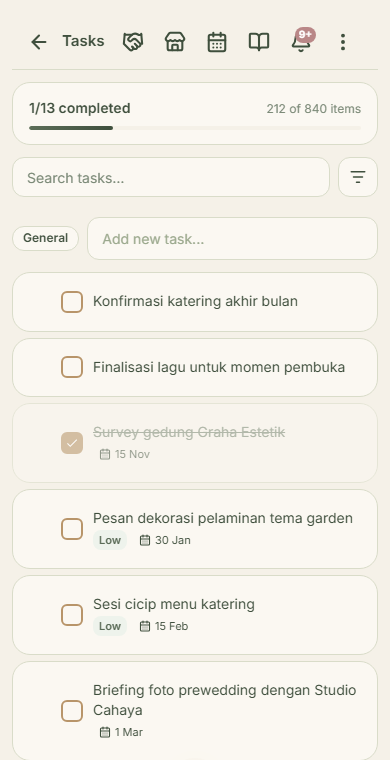
Tap the "Tasks" tab in the bottom navigation. At the top sits a bar with a completed count and an "N of M items" line — this quota is shared by three planning tools: checklist items, budget entries, and vendor-shortlist rows (the vendors you keep on the Vendor page), counted together across every event you own. The quota starts at 15 items and grows with your plan or add-ons; when it fills up, a "planning items" banner offers 500 more items or a roomier plan.
Group tasks by ceremony
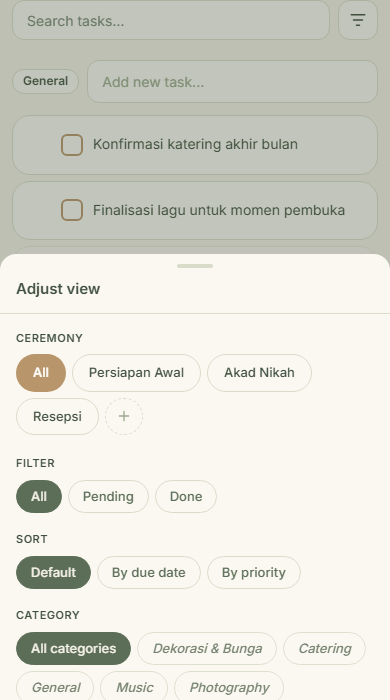
If your event has more than one ceremony (say a solemnization and a reception), tap "Filter & sort" and pick the ceremony tab to scope the list — or tap "Add a ceremony to group tasks" if there is none yet. Every task can carry a category from the picker — General, Venue, Catering, Decor, Photography, Attire, Music, Logistics — and you can still type your own, so all the catering errands read as one block.
Break big jobs into subtasks
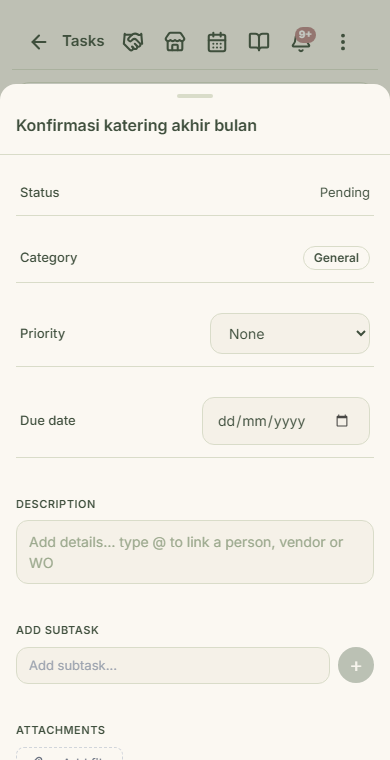
Tap a task to open "Task Details". In that sheet there is an "Add subtask..." field: type and save to add a child. Each task takes up to 10 subtasks, one level deep — no subtasks of subtasks. In the main list, a task with children shows its subtask count and can be folded open.
Set due dates and priority
Still in Task Details, fill in "Due date" and "Priority" (None, Low, Medium, High). Sort the list "By due date" and tasks fall into "Overdue", "This week", "This month", "Later", and "No due date" buckets — so what floats to the top is the most urgent work, not the newest.
Assign owners and write notes
Task Details has an assignee picker with three tabs: "Team", "Vendors", and "Organizer" — a task can be tagged to a team member, a shortlisted vendor, or the wedding organizer. The notes field accepts mentions: type @ to link a person, vendor, or organizer. Anyone who can see a task may comment on it and attach photos or files, so the "is this done yet?" back-and-forth never has to move to WhatsApp.
Filter and export to CSV
Tap "Filter & sort" to choose a status (All, Pending, Done), a sort order (Default, By due date, By priority), and a ceremony tab. The ⋯ menu at the top right has "Export", which downloads a CSV with title, category, ceremony, priority, due date, completion, assignees, and attachment counts — exactly the tree currently on screen after filtering.
Common questions
How many tasks can I create on the free plan?
15 planning items, shared between the checklist, budget, and vendor shortlist across all your events. When it fills, the banner on the Tasks page offers 500 more items or a larger plan.
Can a co-planner add tasks?
Only if you grant them checklist editing. Without that grant, a co-planner can still see tasks tagged to them, comment, and attach files.
Is the checklist that appears when I create an event free?
Yes. Datella seeds a starter task list for your event type without spending AI points. Asking Aira to draft or reorganize the list over chat is what costs points.
Can a subtask have its own subtasks?
No. The structure is two levels — task and subtask — with at most 10 subtasks per task. For anything more tangled, split it into several tasks sharing a category.
Try Datella free — sign up in under a minute.
Start free