
A tour of the Datella Home dashboard
Home is your event workspace: a countdown on top, summary cards in the middle, and doors to every tool. Learn this map once and every other feature is a matter of knowing where its button lives.
Prerequisites
- A Datella account with at least one event
- Event owner or co-planner
Read the countdown and the event button
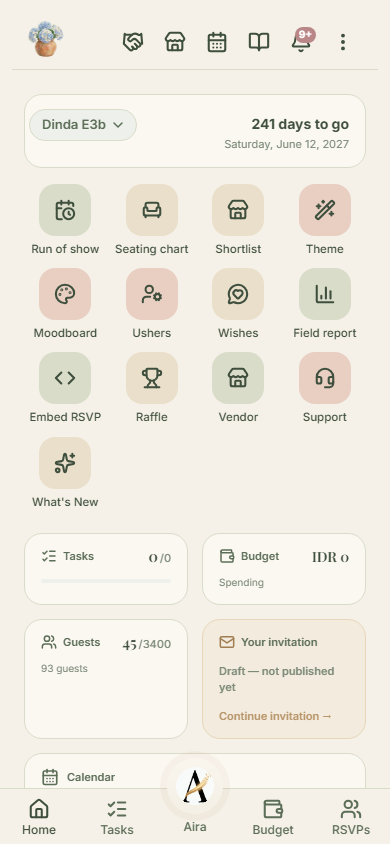
Just made an account with no event yet? Home shows a "Plan my event" card; create the event first (that is its own tutorial), then this tour will match your screen. With an event in place, the top card counts down to its target date ("45 days to go", or "Day of" on the day itself); with no date set it says so plainly. Top left sits the event-name button; tap it to open every event you hold: search, filter upcoming or past, switch the active event, create a new one, or join someone else's event with an invite code.
Use the tools grid below the countdown
This row of icons leads to features that have no tab of their own. The most used: Run of show, Seating chart, Shortlist, and Theme. The rest are more specialized: Moodboard, Ushers (door staff), Wishes, Field report, Embed RSVP, Raffle, and Support (human help). The "What's New" icon glows red when an app update note is waiting unread. Some icons appear only when your account holds the permission; a co-planner sees fewer than the owner.
Read the summary cards
The Tugas (tasks) card shows checklist progress, the Anggaran card totals your budget, Tamu compares confirmed guests against your RSVP allowance, and Undanganmu reports your invitation status: published, draft, or none yet, with its continue button. The Kalender card stacks your three nearest reminders and task due dates. If the Anggaran or Tamu card is missing, that is not a bug: your account lacks read permission for that data.
Check the activity feed
Below sits a feed of the last three actions: who added a guest, finished a task, or replied to an RSVP, each with its time. Aira's actions are logged here too. Tap "See all" for the full history.
Open the three-dot menu
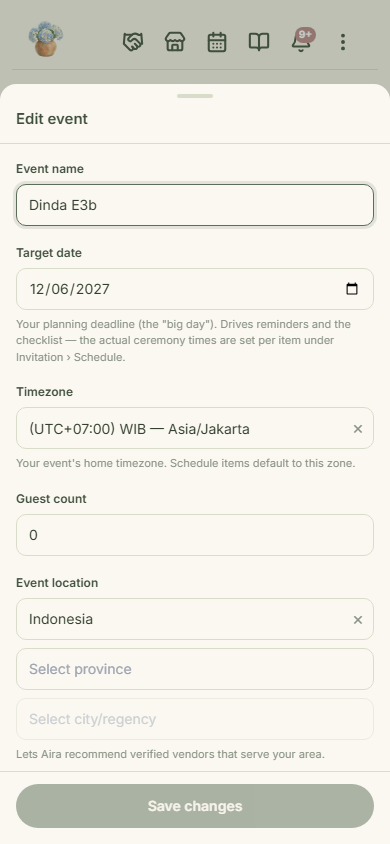
Menu lainnya (the three dots, top right) opens the event settings sheet: name, target date, timezone, guest estimate, location, currency, and budget target. One distinction matters: this target date drives planning and reminders. The ceremony times your guests see live in the invitation's Jadwal (schedule) section, edited separately in the invitation editor.
Learn the bottom navigation
Four tabs: Beranda (home), Tugas (tasks), Anggaran (budget), and RSVPs, plus the round Aira button in the middle for asking anything at any time. The budget and RSVPs tabs follow your permissions too: without them the tabs are hidden.
Common questions
My budget card is missing. Is the app broken?
No. Cards that show money or guest figures disappear when your account lacks the matching read permission, for example after joining as a co-planner with a limited grant. The owner always sees everything.
Can I keep several events at once?
Yes. The event pill top left lists them all, with search and filters. Old events can be archived so they stop crowding the list; nothing is deleted.
What is the red dot on the "Yang Baru" icon?
It marks an unread app update note. Tap the icon to read what changed; the dot clears once it has been opened.
Where do I change my event date?
Three-dot menu at the top right, then "Edit event details". To change the times guests see, edit those in the invitation editor, under the Events section.
Try Datella free — sign up in under a minute.
Start free