
How to add a photo gallery
The gallery is the section aunts open at midnight. Datella holds twenty photos, converts them to light versions automatically, and serves them with a pinch-and-swipe viewer. Your job is only two decisions: which photos, and in what order.
Prerequisites
- The invitation editor open
- The Gallery section added if missing
Open the gallery panel in Content
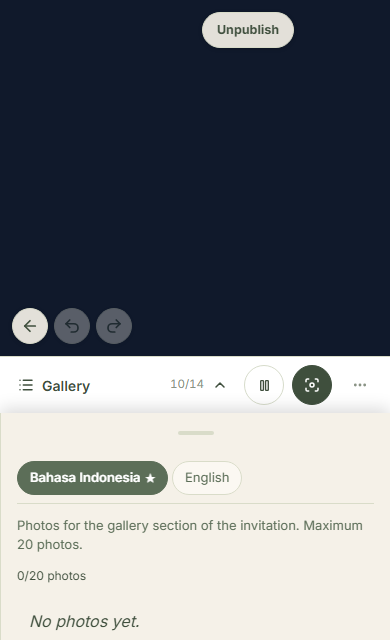
Select the gallery section on the canvas — or add it first through "More" → "Sections" — then tap the "Content" tab. The panel lists current photos, an "n/20 photos" counter, and an upload button that disables itself at the cap.
Prepare the photos first
Invitations open on metered phone data — three megapixels is plenty, and the system compresses to light versions automatically anyway. iPhone HEIC converts on its own; the only format to avoid is text-heavy PNG, which bloats. Pick photos whose faces read at small size: this is an invitation gallery, not a print album.
Upload several at once
Tap upload, pick a batch from the phone gallery, and let it run until the counter climbs. The pace limit is thirty uploads a minute — generous, though hundreds at once is not what it's for. A failed upload shows its error message under the list — one message for the latest failure, not one per photo.
Choose the hero
The cover hero is set separately from the gallery, on the cover panel — and if a hero photo also lives in the gallery, deleting it there releases its hero status too, with a warning first. The same favorite can be both; that's the quickest way to unify the invitation's face.
Order them, and know the limit
Up and down arrows rearrange photos in the panel — and one honest thing to know: this ordering is not persisted permanently and can revert after a reload. The reliable path: upload in your favorite order from the start, because the attach-time order is the one that sticks.
See it as a guest
Guests see the gallery as a scrolling grid; tapping a photo opens it full-screen with pinch zoom and swipe navigation. Open "Preview as guest" and check the story order: proposal, engagement, pre-wedding, then everyday shots usually flow well.
Common questions
Why did my photo order change by itself?
Because the panel's reorder isn't persisted permanently yet — a shortcoming we state plainly — and the upload-time order is the one guaranteed to hold. Compose your best order before uploading.
What's the file size limit?
After automatic compression, the stored full version caps at three megabytes a photo — nearly every phone photo passes without manual shrinking. A tighter account storage quota tells you when it's exceeded.
Can I add videos?
Not yet — the gallery is photos only. For moving moments, link a reel or video through a custom section, or save it for the event itself.
My professional pre-wedding files are huge. Now what?
Still fine: the system crops and compresses automatically to fast-opening sizes. Pick the final edited versions — compression can't tell which photo was "still being edited".
Try Datella free — sign up in under a minute.
Start free