
Decorations and elements: the advanced layer
Template and theme carry eighty percent of the look. This page is for the other twenty: ornaments you place yourself, motion that follows the phone's tilt, and foil that catches light as the invitation turns. All optional — a clean, calm invitation still wins with guests.
Prerequisites
- The invitation editor open
- Comfortable selecting sections on the canvas
Place ornaments from the Elements tab
Tap "Elements" on the rail; choose the "Decorations" sub-tab and the target section on the canvas. The picker grid carries Datella's ornament catalog — corners, dividers, accents — with search and pages; tap one and it sticks to that section. Drag to move, pinch to scale. Each section holds at most twenty ornaments, and the counter shows it plainly.
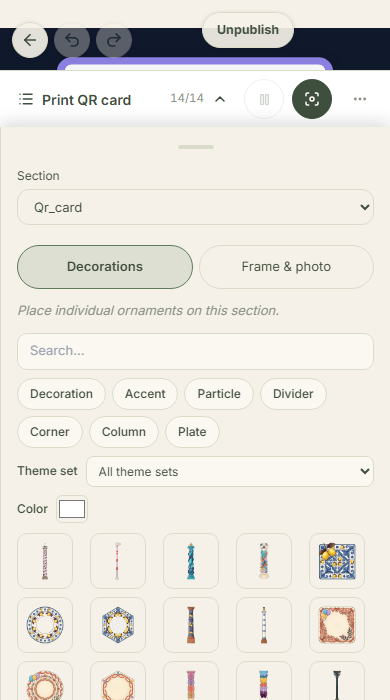
A photo frame for the whole invitation
The "Frame & photo" sub-tab sets a frame that applies invitation-wide, not per section — one decision for every photo. Compare shapes right on the canvas; a busy frame pairs best with a calm theme so the two don't compete.
Put things in motion
Select an ornament and open its motion panel: rotate, flicker, pulse, sway for two-dimensional loops; or three-dimensional effects like full turns and fly-ins. Durations are adjustable. The rule of thumb: one or two moving pieces feel alive, many feel noisy — especially on low-end phones.
Switch on foil
Foil adds a metallic sheen — gold, rose gold, silver — that shifts as the screen tilts. Foil attaches per element through its panel, and photo backdrops can take their own foil. Gold foil on the cover title is the classic pairing for formal invitations.
Set depth in the Layers tab
Under "More" → "Layers", the depth panel sets how many planes your invitation has (two to ten), how far it leans when the phone tilts (Subtle, Medium, Dramatic), and how deep the stage goes with the Depth distance dial — widening it lets every layer sit further from your words, and the viewing distance adjusts itself. Guest-filled sections — RSVP, gift, gallery — are deliberately kept flat so fingers land true. Layer order lives here too, with position locks and hide.
Common questions
Do guests in the other language see my elements?
Yes — ornaments, frames, motion, and foil apply to every language and guest. Only text translates; the look is one.
Why don't ornaments in the RSVP section tilt with the phone?
Guest-filled sections — RSVP, gift, gallery, wishes, QR card, contact, FAQ — are kept flat by design so they stay touch-friendly. Depth lives in the storytelling sections like the cover and story.
Can I upload my own ornament PNG?
Not yet — the picker carries Datella's curated catalog. Your own photos enter through the Uploads tab or the gallery, not as ornaments.
Do foil and motion show on every phone?
On every modern phone, yes; on old devices or low-power mode the system simplifies automatically to stay smooth — so make sure the design still reads well without effects, since some guests see the simplified version.
Try Datella free — sign up in under a minute.
Start free