
How to change the theme and colors
A theme is two decisions at once: colors and letterforms. Datella ships fourteen polished pairs — garden sage through citrus terrace — applied in one tap and still editable color by color. A theme stands apart from a template: the template arranges decorations, the theme paints them.
Prerequisites
- The invitation editor open
Open the Theme tab
On the editor rail, tap "Theme". The panel stacks top to bottom: the card of the template in use, the type-style tiles, the theme cards, and the color row. If you arrived from the template tutorial, that top card is where you swap it.
Tap a theme, watch everything follow
Fourteen themes are laid out, each a ready color-and-font pairing: cool-green Garden Sage, soft Rose Dusk, formal Royal Navy, earthy Rumah Joglo. Tap one and the whole invitation — buttons, rules, headings, body — follows at once. It saves by itself; there is no apply button to hunt for.
Tune the colors yourself
Below the theme cards sit seven core colors — primary, dark, accent, background, surface, text, muted — each with its own picker. Changing the primary alone restyles the face of the invitation; the photo backdrop is a separate eighth color that falls back to the theme background when empty. Your custom colors override the theme and persist while you browse others.
Pick the font pair
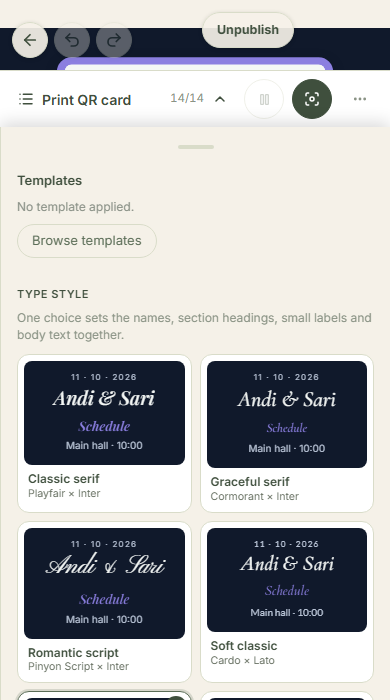
The "Aa" tiles near the top are the type styles: Classic Serif, Romantic Script, Thin Elegant, through Cheerful Rounded — eight heading-plus-body pairs. Tap to apply across the invitation. A single section can differ through its own settings, and "Use this style in all sections" unifies everything again.
Check it in the wild
A color that flatters your screen can change on a guest's phone. After choosing, open "Preview as guest" and study your photos: a background too close to the text color usually only shows up on busy photos. Shift a shade or two and the invitation reads professionally set.
Common questions
Does switching themes wipe my decorations?
No. A theme touches only colors and fonts; ornaments, frames, and section backgrounds from your template or your own arrangement stay put. Only the colors composing them change.
Can I go back to the original theme?
Yes — tap its card anytime and the colors return to the original pairing. Tapping the theme's card resets the whole palette at once; only your own experimental colors need re-entering by hand.
Can I use fonts from our stationery designer?
Not yet. The offer is the eight built-in pairs, each readability-tested on phone screens — which is also why the invitation stays quick to open.
Different themes per language?
No — one invitation, one theme, for every language and guest. Two events needing different moods are two invitations.
Try Datella free — sign up in under a minute.
Start free