
The Datella invitation editor, start to finish
The editor looks like a design tool, but the job is simple: pick a section, change its content or style, and the editor saves by itself. This tour introduces where everything lives — the rail, the canvas, the status bar — so the other tutorials can just point at places.
Prerequisites
- An event created
- The editor opened from the Your invitation card on Home
Enter through Your invitation
From Home, tap the Your invitation card and the editor opens for the active event. On a phone it may offer to move you to a bigger screen — choose to continue here and everything still works; only the canvas area is narrower. The offer returns every time until the "Don't show again" box is ticked — after that, buried for good.
Learn the five-tab rail
The main tabs: "Content" edits the selected section's text and contents; "Theme" holds colors, fonts, and templates; "Elements" places ornaments and frames; "Text" adds free-standing lettering; "Uploads" brings in your own photos. The rest hides under "More": the sections list, layers, and the invitation settings — music and the link address included.
Get around the canvas
The canvas in the middle shows the invitation from cover to footer. The section-name strip above it jumps straight to any section, and scrolling the canvas highlights whatever is passing by. Zoom sits in percent steps on the bottom bar, with "Fit to screen" to come back to sane. Tapping a section selects it for editing.
Read the status bar along the top
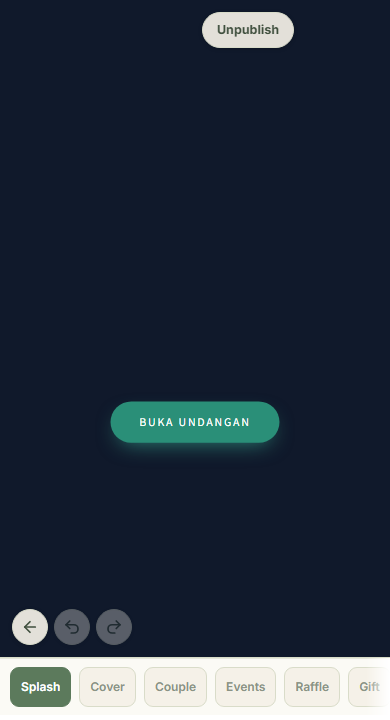
The status bar is mission control: the Draft or Published pill, the "Saving…" indicator that becomes "Saved", the "Preview as guest" button, and Publish — the only publish control in the entire editor. Once the invitation is live, its addresses appear on this bar too. The publishing tutorial walks each button.
Borrow desktop habits: undo
Undo keeps the last fifty steps and works across sections; its reach is decorations and the photo frame — text edits and settings do not undo, so reread wording changes before moving on. The undo and redo buttons sit on screen too, so phone users need no shortcuts. On a computer: Ctrl or Cmd+Z undoes, Ctrl+Y or Ctrl+Shift+Z redoes, Ctrl+D duplicates the selection, Delete removes it. One limit matters: undo history lives only while the page stays open. Reload or close, and history starts fresh.
Trust autosave, watch the indicator
There is no save button because the editor saves on its own: decoration changes a third of a second after your finger rests; settings save as you change them — certain sliders wait half a second. If the connection drops, a rejected change rolls back to the last confirmed state. Before closing the tab, glance at the "Saved" indicator — that is the one habit worth building.
See it as a guest
"Preview as guest" opens a phone frame rendering your invitation exactly as guests see it — waiting for pending saves first, so you never preview stale work. It needs a claimed link address; without one, the editor points you to set it. Real guests never see the preview marker you do.
Common questions
Is my work lost if the tab closes by accident?
Almost certainly not. Autosave runs constantly and flushes the last saves as the page closes. Only changes from the final fraction of a second can drop — watch the "Saved" indicator as a habit.
Can two people edit at once?
Yes, with a note: saves happen per section, and a collaborator needs the invitation permission from the event owner. For adjacent work, a simple "you take the cover, I take the events" agreement beats editing the same section simultaneously.
Why didn't undo bring back yesterday?
Undo is session-scoped: the last fifty steps while the page is open, cleared on reload. Before deliberate big changes, note the important settings yourself.
The editor feels heavy on my phone. Any fix?
Drop the zoom to something comfortable, close pickers you're not using, and don't open the guest preview repeatedly. If it stays heavy, the opening "bigger screen" offer means it: the editor is roomiest on a laptop or tablet.
Try Datella free — sign up in under a minute.
Start free