
How to manage sections and content
An invitation is a stack of sections: cover, couple, events, RSVP, and their companions. You decide which sections show and in what order, then fill each with your own words. This guide handles structure and content — the catalog of section types has its own tutorial.
Prerequisites
- The invitation editor open
Open the sections list under "More"
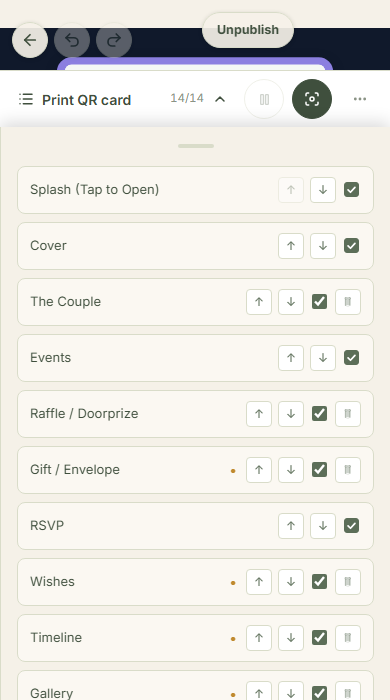
On the editor rail, tap "More" then "Sections". The list shows every section of your invitation in order, each row carrying a shown-hidden checkbox, arrows to move it, and a trash icon to delete it. Mandatory sections — Cover, Splash, Events, the RSVP form, Print QR card — can be neither hidden nor deleted; the row says so directly.
Add through the picker
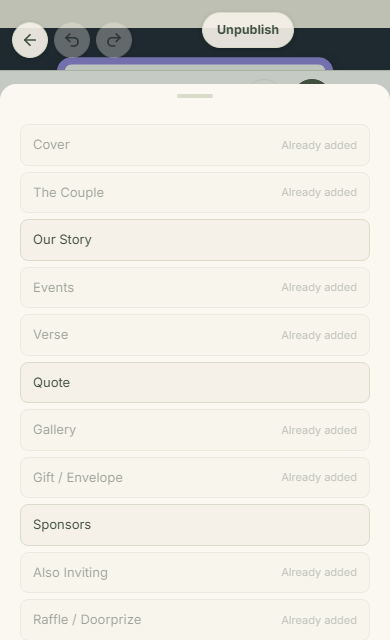
The "Add section" button opens a picker of types that fit your event type, complete with tailored suggestions. Types already in use wear an "Already added" chip — kinds like the gift envelope or gallery are one-per-invitation by design. The overall cap is thirty sections, far beyond any real invitation's needs.
Reorder with arrows; the cover leads
Up and down arrows move a section one step; there is no dragging. The cover and splash are pinned to the front, and the QR card always anchors the very back. A comfortable reading order usually runs: couple, story, events, then the extras — wishes and the gift envelope sit best near the bottom, close to RSVP.
Fill content in the "Content" tab
With a section selected on the canvas, the "Content" tab shows its fields: titles, body text, photos, numbers — different per section type. Writing here feels like filling a form; changes save on their own and appear on the canvas at once. Deleting a section always passes a confirmation, and its contents go with it.
Work the cover and its typing effect
The cover holds a special place: its opening title and subtitle animate with a typing effect when a guest opens the invitation — letter by letter, roughly fifty-five per second. Set the main photo and a short description in the same panel; that photo is the face of your invitation on shared links. The typing effect yields automatically for guests who enable reduced motion on their phones.
Close with a two-line footer
The footer is edited in the invitation settings ("More" → "Settings"): a signature — auto-filled with both your names until you change it — and a thank-you line. Both are short: the signature caps at forty characters, the thanks at one hundred forty. Parents' gratitude usually lands right here.
Two languages, one invitation
With a bilingual invitation, language tabs appear above the editor: fill ID, switch, fill EN. Guests read whichever language they chose, and an unfilled field falls back to the first filled one — so keep your primary language complete before adding a second.
Common questions
Why can't the cover be moved or deleted?
Cover, splash, events, RSVP, and the QR card are mandatory — an invitation without them stops being one. Their front-and-back positions are locked so every guest gets the same experience.
How many sections can I have?
Thirty. In practice invitations read best under ten; the headroom exists for repeatable kinds like story, quote, and custom sections.
What does a guest see if the second language is empty?
The system takes the first filled field: the guest's chosen language, then the invitation's primary language, then whatever exists. An empty field never renders as empty text.
Can the section order differ per guest?
No. One invitation, one order, for everyone — a guest invited only to certain ceremonies simply doesn't see those ceremonies; everything else keeps its place.
Try Datella free — sign up in under a minute.
Start free