
How to seat your guests in Datella
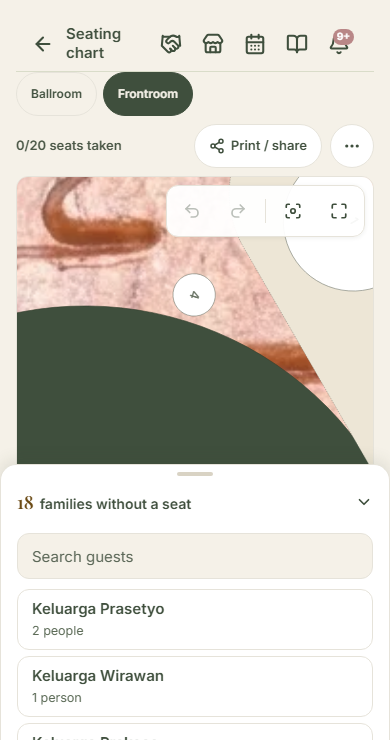
Seating guests is an afternoon of paper shuffling, or two kinds of taps. A tray at the bottom of the chart holds every family still without seats; tap the family, tap the table. Split families get flagged on their own, and on the day the chart shows who has actually arrived.
Prerequisites
- A chart already built (previous tutorial)
- RSVPs coming in, so party sizes are accurate
Meet the "families without a seat" tray
A tray slides up from the bottom of the chart showing how many "families without a seat" remain. It holds every likely-attending family with unfilled seats. Tap one and the banner above the canvas becomes "Tap a table or seat for {name} · {n} people". Seated families leave the tray on their own, until it reads "Every family has a seat."
Tap or drag a family onto a table
Two gestures, same result: drag the family from the tray straight onto a table, or tap family then table. The family fills consecutive seats from that spot, and a "Fits {n}" chip tells you before you let go. Need exact seats, a family pinned to one side of a table say? "Choose a seat" picks them one by one.
Handle tight tables and split families
When a table has fewer empty seats than the family needs, a "Not enough seats" dialog offers "Seat some", and the rest stays in the tray. A family that ends up across two tables raises a "{n} families seated apart" chip above the chart, tappable to see exactly who, so splitting stays a decision instead of an accident. A full table declines politely: "{table} has no empty seats."
Move everyone, families staying whole
Restructuring, the VIP table relocating say? "Move everyone to…" relocates a whole table's guests at once and keeps each family together at the destination. If the destination runs short, the ones who do not fit are reported by name ("Not enough room at {table} for: {names}") and simply stay put, nobody is dropped.
Read the chart on the day, and print for ushers
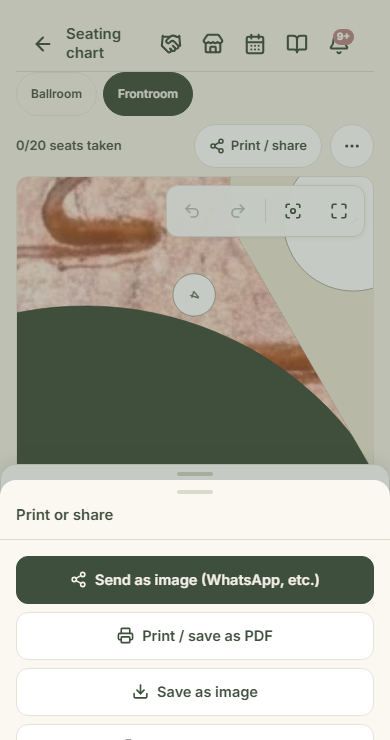
The table list on the canvas carries a legend of taken, empty, and arrived seats; a guest checking in at the door makes their seat glow when the chart is opened or refreshed, so attendance reads off the chart itself. To print, the "Print / share" button opens a sheet of options: a plan image for WhatsApp, a full-plan PDF with a guest list per room, a per-table guest list to hand ushers, and in the browser a save-as-image too.
Common questions
Can one family sit at two tables?
Yes, and sometimes it must, a party of seven into six leftover seats. The "families seated apart" chip records every such case so you can review the list and call each one intentional or fix it.
More people show up than the RSVP said. Now what?
Correct the party size in the guest list; the family re-enters the tray with its new count, and you seat the difference. The chart follows the data, never the other way around.
Can an usher look up a table number on the day?
Yes, from the check-in screen: scanning a guest shows their table on the result card. The printed per-table lists are the usher's pocket backup.
Can I send the result to my planner over WhatsApp?
"Send as image (WhatsApp, etc.)" renders the plan per room with a title band and the guest names listed beneath it.
Try Datella free — sign up in under a minute.
Start free