
How to run multiple ceremonies with separate capacity
A 60-seat ceremony venue and a 400-guest reception is the classic squeeze. In Datella each ceremony is one schedule entry on the invitation — its own date, venue, and capacity — and you decide which guests see which event.
Prerequisites
- The invitation exists in the editor
- Guests imported if you will assign per guest
Add one entry per ceremony
Open the invitation editor, tap "Content" on the editor rail, then pick the "Events" section in the section strip — its panel opens with the intro "Add one entry per ceremony (akad, reception, etc.)". Fill in name, date and time, venue, and dress code for each; There is no cap on how many — two to four is the common range — and guests see them all on the same single invitation page.
Give each ceremony a capacity
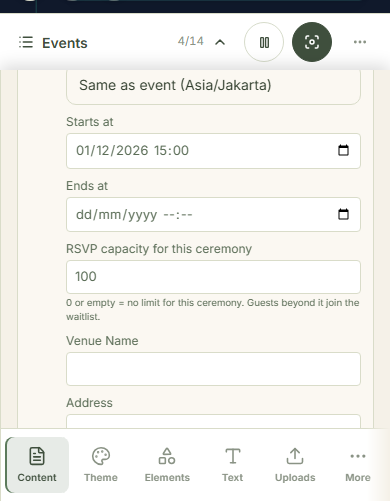
Every entry carries an "RSVP capacity for this ceremony" field. Leave it empty or 0 for no limit; any other number caps accepted guests for that ceremony. Ceremony 60, reception unlimited, is the pattern most couples use. Fill the real capacity of the venue, not the turnout you hope for; this number is what holds guests back.
Choose public or invite-only
Each entry has a switch: "Public — anyone with the link sees this ceremony", or "Invite-only — hidden from open links; only guests you invite will see it". Family-only ceremonies usually go invite-only; receptions stay public. An invite-only ceremony is not grayed out for outsiders; guests not invited to it never see it at all.
Assign guests, one by one or by category
For an invite-only ceremony, mark who is in from the same ceremony panel in the editor: per guest from their row, in bulk through "Invite by category" (say, the whole Family category), or "Invite all guests". The CSV import also carries per-ceremony invite columns if your spreadsheet already knows the split.
See what the guest sees
With two or more visible ceremonies the RSVP form shows a checkbox per ceremony — guests tick ceremony, reception, or both, and each member of a big party can choose their own. With a single visible ceremony the form falls back to a plain attending-or-not choice. A full ceremony wears a "Full" badge and stays selectable — with a note that choosing it joins the waitlist.
Watch each ceremony fill up
The guest list grows one tab per ceremony, each with a chip counting accepted guests against the cap and a "Full" badge once the cap is hit. The CSV export follows the active tab, and the RSVP report prints a recap per ceremony — both have their own tutorials.

Common questions
How many ceremonies can I create?
The app sets no limit, and ceremonies and capacity cost nothing extra — they are part of the RSVP list on any plan. Ceremony plus reception is two; adding a third or fourth event keeps working, all inside one invitation.
Do guests see the capacity numbers?
No. Guests only see a "Full" badge on a ceremony past its cap; the capacity figure never appears on the invitation.
What if the ceremony is full but the reception is not?
A party that picks the full ceremony waitlists whole, even with reception space left, so promoting or waiting stays one decision per party.
Can a guest attend only the reception?
Yes — that is the main use: they tick reception and skip the ceremony checkbox. Each ceremony's count follows the ticks.
Try Datella free — sign up in under a minute.
Start free