
How to use a guest waitlist without a spreadsheet
The venue seats 300; your list wants 350. The classic fix is an A-list and a B-list tracked on paper that eventually goes missing. Datella keeps the queue in the app: one party per row, an explicit promote order, and every promotion decided by you, one at a time.
Prerequisites
- An event with a guest list
- Write access to the guest list
Understand the unit: one party, one row
The waitlist works per RSVP row — one family or party. They rise together and wait together; there is no half-promotion. Parties land in the queue two ways. One, you mark them yourself from the guest sheet. Two, automatically: once capacity is full — event-wide or for a single ceremony — a guest who still submits gets accepted as "Waitlisted" instead. Setting the caps is covered in the ceremonies & capacity tutorial.
Mark a party into the queue
Tap a guest row to open its sheet, then choose "Waitlisted" in the status row. Marking manually sends the guest nothing — it is purely your queue note. For many at once, the CSV import accepts waitlisted in the status column.
Order the queue from the "More menu"
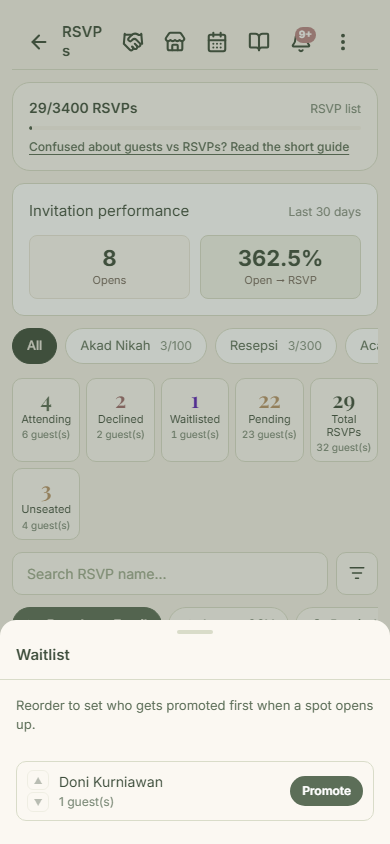
Once at least one party waits, the "More menu" on the guest list gains a "Waitlist (n)" entry. The sheet that opens lists the queue in order; up and down arrows move a party, and the top row is the next candidate. There is no dragging — the order is yours, it saves the moment you press an arrow, and the ranking rides along in the CSV export.
Promote as declines come in
Tap "Promote" on the chosen party. Datella re-checks event-wide capacity and each ceremony's capacity before executing. If it overflows, a confirmation names what passed the limit — total capacity or one ceremony's quota — with the number; continue only when you are sure of real-world slack. On success the status becomes "Attending" and the party leaves the queue. Datella sends the guest nothing on promotion — tell them yourself over WhatsApp or email.
What a waiting guest experiences
A guest who lands in the queue automatically knows exactly where they stand: the form shows "Full — you'll be added to the waitlist" on the ceremonies that are full, the confirmation screen says "You're on the waitlist" and names the full ceremonies, and a dedicated acknowledgement email follows. A party you marked manually hears nothing — if they should know their position, tell them yourself over WhatsApp, or send an email broadcast filtered to "Waitlisted".
Common questions
Is there a limit on how many guests can wait?
No. The queue can be any length; the only constraint is the capacity that triggered it.
What if a waitlisted guest resubmits the form?
The answer attaches to the same row; nothing duplicates. If capacity is still full they stay waitlisted, and if room opened up the new answer applies normally.
A waitlisted guest shows up anyway. Can I check them in?
Yes. The door scanner ignores status — anyone who arrives can be scanned and recorded. On the door board they sit grouped with declined until promoted; that is just grouping, not a data error. Promote them first if you want clean numbers.
Can a guest drop off the waitlist themselves?
Yes — they resubmit the form choosing not attending, or you change the status from their guest sheet. The row leaves the queue the moment its status is no longer waitlisted.
Try Datella free — sign up in under a minute.
Start free