
How to print your RSVP report and door list
On the day, the front desk needs paper, not an app: names grouped by category, headcount per row, and a blank column to tick with a pen. Datella builds it from the live RSVP data — you press print.
Prerequisites
- RSVPs coming in (an empty list prints an empty page)
Open Print / Report
Above the guest list, tap "Print / Report". A dedicated report page opens — outside the main app shell — carrying everything from the summary to the print-ready tables. It works on a phone or a laptop; the printout stays paper-sized either way.
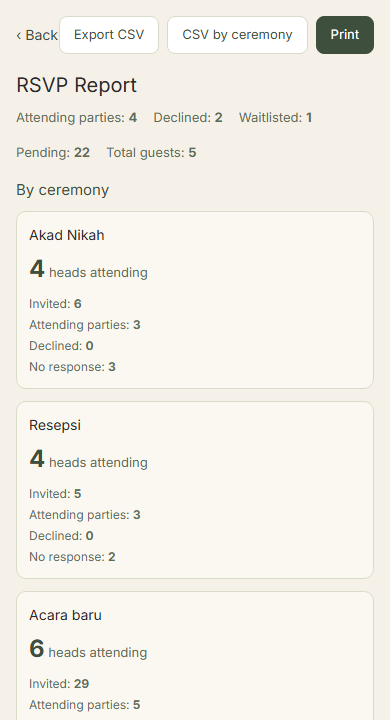
Read the recap first
Summary tiles per ceremony lead the page: attending, declined, pending, and total guests including the waitlist. Below them, the "Who's invited to what" matrix shows which guests are invited to the ceremony, the reception, or both — handy when someone appears at only one of them.
Print the door list
Tap "Print" and the browser dialog opens. The sheet is already set to A4 portrait with tight margins, and every ceremony starts its own fresh page. Each table lists party name, category, headcount, and status — rows grouped by category, with one empty tick column at the head of each row for the door staff. Choose "Save as PDF" if the destination is the committee's group chat rather than a printer.
Take the CSVs if you need them
Two downloads live on the page. "Export CSV" produces the per-person file with every column — entry code, check-in status, and any custom-question answers — for further processing. "CSV by ceremony" lays out one row per guest per ceremony, right for handing each ceremony's staff their own file.
Fix the data without waiting on guests
The report is a snapshot of the moment it opens — correct the data first, then print again. A guest who realizes they answered wrong simply resubmits the form from their same link; the answer attaches to their row, nothing duplicates. For small fixes like a name's spelling, edit the row directly in the guest list.
Common questions
Can I switch to letter or F4 paper?
The layout is fixed to A4 portrait. The browser dialog can force another size, but A4 comes out cleanest — the per-ceremony page breaks are computed for it.
Are pending guests printed?
Yes, marked "Pending" — safer to have the name on paper than a guest arriving off-list. Their tick simply waits at the door.
When can guests no longer change their answer?
While the form is open. You can lock RSVPs by setting an RSVP deadline in the invitation settings; past it the form refuses new answers and the list truly settles.
How is this different from the CSV export on the guest list?
The guest-list export follows whatever the screen filter shows — what you see is what comes out. The report re-arranges for humans: recaps, grouping, and print layout. Both read the same data.
Try Datella free — sign up in under a minute.
Start free