
How to send email broadcasts to your guests
WhatsApp wins for the personal touch. Email wins for official announcements to many people at once: a schedule change, parking details, the final reminder. Datella's composer sends on your event's behalf, slips each guest's personal link in automatically, and shows you exactly who received what.
Prerequisites
- The invitation is published
- Guest email addresses filled in
- Email credits (top up from the plan screen)
Open the composer
On the RSVP list, tap "Broadcast Email" in the top button row — it activates once the invitation is live. Another route: from a guest's send sheet, "Send via Email" drops that guest straight into the composer with their checkbox ready.
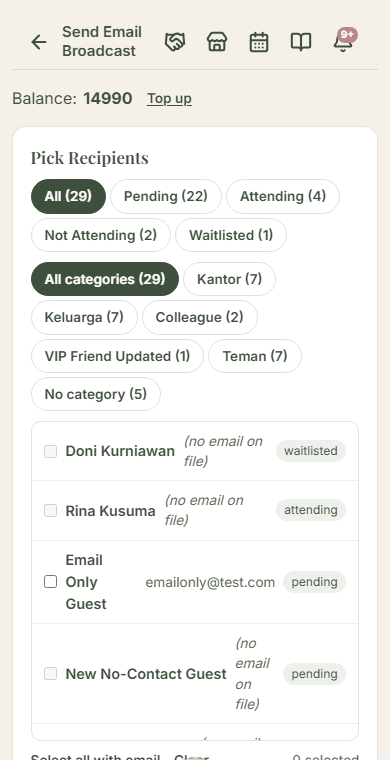
Pick the recipients
The "Pick Recipients" section filters the list by status — All, Pending, Attending, Not Attending, Waitlisted — and by guest category. Filter first, then tick who you want; the count that matters is the ticked count. A common pattern: filter to "Attending", select all, and send parking details to exactly the people coming.
Write the subject and body with tokens
Tap the "Click to insert token" chips to drop in the automatic pieces: the guest's name, the event name, their personal RSVP link, or each ceremony's date — tokens exist per ceremony. That link is what keeps a blast feeling personal — every guest receives their own version, never a generic one. Line breaks in the body become line breaks in the email.
One language per send
With a bilingual invitation the composer shows one tab per language, and a single send carries a single language — nothing mixed within one email. Send the Indonesian version, switch tabs, adjust the wording, send the English one. Each language remembers its own draft, saved automatically after every send.
Preview, then send
Tap "Preview email" to see the message exactly as a guest receives it, tokens already filled with a real example. The cost card shows the credit spend: one credit per recipient, charged in one go. Tap "Send" and the emails queue; delivery goes out in stages, in small batches rather than one simultaneous burst, which keeps providers from reading it as spam.
Track history and resend
The "Broadcast history" section records every send with per-recipient status — delivered, bounced, or held. To reach guests who appeared later, reopen the composer: the last draft is already loaded, and you just tick the additions. Already-emailed guests are skipped automatically; tick "Resend to guests already emailed" only if you truly want the repeat, and anything actually resent charges again.
Common questions
What does it cost?
One credit per recipient per send, resends included. Credits come from the plan screen — prices are on the Datella Pricing page; some one-time plans bundle them. WhatsApp uses no credits at all.
Is there a daily limit?
Yes — two thousand emails per event per day and five thousand per account per day, far above a normal event's needs. The cap keeps delivery healthy in the eyes of email providers.
What address sends the email?
Datella, on behalf of your event — not your personal address. Every email carries a per-recipient unsubscribe link, and guests who unsubscribed are skipped automatically. A collaborator can send once the event owner grants them the broadcast permission.
What about guests without an email address?
They cannot be ticked: their row is disabled with a no-email note, and invalid addresses are filtered again before any credit is charged, so no credit burns on email-less guests. Fill the email column in the guest list for guests you want to reach this way.
Try Datella free — sign up in under a minute.
Start free