
How to manage your vendor shortlist to booking day
The vendor shortlist is your candidate list with its progress: starting as "Shortlisted", moving through "Contacted" and "Quoted" up to "Booked". One quoted price per vendor for comparing, and the moment a vendor is booked, Datella offers to record the payment straight into the budget.
Prerequisites
- An event has been created
- Budget write access if you want to record payments from the shortlist (owners have it by default)
Open the shortlist and add vendors
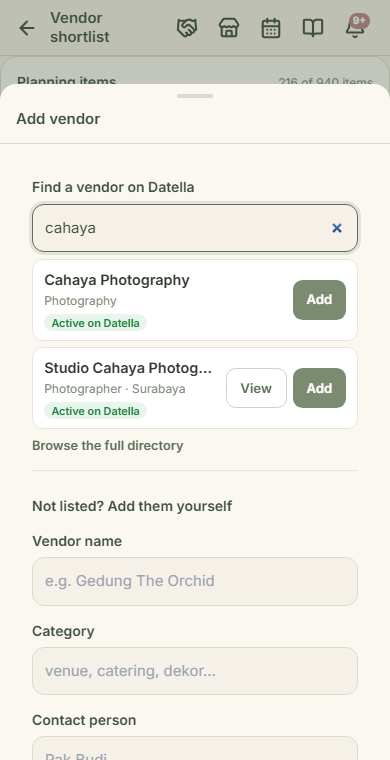
From Home, tap the "Shortlist" tile to open the "Vendor shortlist" page. Tap "+ Add vendor": the top of the sheet now searches Datella's directory — type a name or a category (photographer, catering, MC) and tap "Add" on the matching card. A listed vendor joins as a LINKED row: you can contact them in-app, share event details once they're booked, and review them later. Vendors that aren't listed can still be added by hand below — fill in the name (required), a category, contacts — phone or WhatsApp, email, social media, marketplace — and notes. Vendors you once contacted through Datella's WO directory also appear under "Contacted via directory, not on the shortlist yet" with an "Add to shortlist" button — the data just needs accepting.
Move the status as things progress
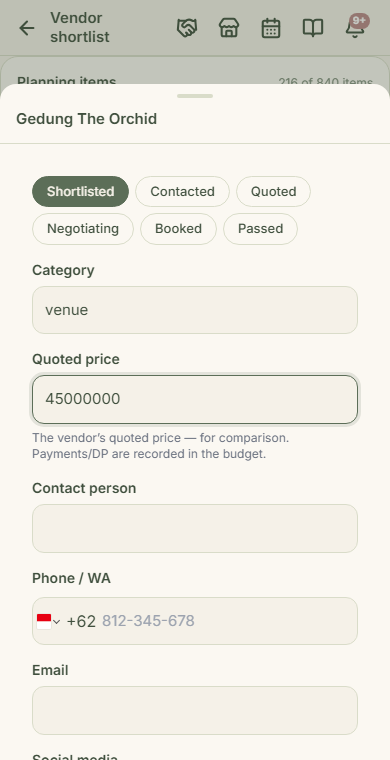
Open a vendor from the list; across the top of the detail sheet sits a row of status pills: "Shortlisted", "Contacted", "Quoted", "Negotiating", "Booked", and "Passed". Tap to move — up or down, both work, and statuses are manual: nothing shifts on its own. One exception to remember: a vendor marked "Passed" who gets added again starts over from "Shortlisted".
Log one quoted price per vendor
In the vendor detail there is a "Quoted price" field — one number per vendor, and its purpose is stated right below: "The vendor's quoted price — for comparison. Payments/DP are recorded in the budget." A "Quote" chip shows in the list so comparisons read at a glance. Compare here first; move the money to the budget once you are sure.
From booked to the budget
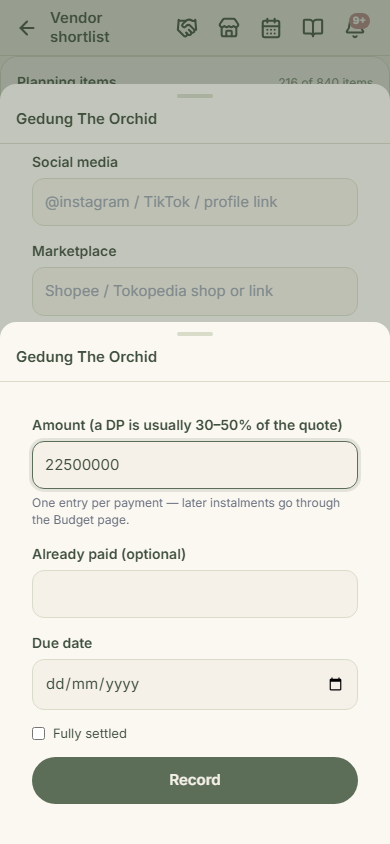
The moment the status moves to "Booked", the "Record in budget" sheet opens on its own. The amount field is prefilled with a deposit estimate (usually 30–50% of the quote — adjust to your deal), and you can add "Already paid (optional)", a due date, and the "Fully settled" badge. If a budget entry already exists, use "Link an existing entry" instead of doubling it; if this vendor genuinely needs no record, "No budget record needed" dismisses the prompt.
Payments read back from the budget
In the vendor detail, the "Payments" section reads back the linked budget entries: total paid, remaining, and the next due date. It is one source with the Budget page — record on either side, it shows on both. So nothing slips, a booked vendor with no entry is flagged "Booked, not recorded in the budget yet" on the shortlist, and the Budget page adds the "{n} booked vendor(s) not recorded in the budget yet" reminder.
Mark sensitive where needed
Some vendor numbers are not for everyone. The vendor detail has a "Mark sensitive (partner + me only)" switch — a flagged vendor disappears from other co-planners' view entirely, counting included. Vendor contacts are never leaked into system logs either, so the phone numbers stay yours.
Common questions
What is the difference between the shortlist and the budget?
The shortlist compares vendors before you choose: contacts, status, and one quoted number. The budget records money after you choose: estimates, actuals, due dates, and paid marks. The payments column in the shortlist is only a mirror of the budget.
I tapped the wrong status — can it go back?
Yes — the status pills move freely in both directions; "Negotiating" can go back to "Contacted". The only restart is for vendors marked "Passed": add one again and it returns to "Shortlisted".
Can I export the shortlist to CSV?
Not yet — there is no shortlist-specific export. What exports today are the checklist and the budget; vendor payments ride along in the budget CSV because that is where they live.
Can my co-planner see every vendor?
Yes, the list is visible — except vendors you marked sensitive, which vanish entirely from their view. Recording payments needs budget write access; without it, the payments section is read-only.
Try Datella free — sign up in under a minute.
Start free