
Messages: chat, groups, and tags in Datella
The Messages screen gathers every planning conversation: one-on-one chats with vendors and organizers through the Chat button, event groups for your inner team, and tags that link a message to a budget entry, task, or guest. Everything on this page works on the free plan.
Prerequisites
- A Datella account with at least one event
- For vendor chats: a booking request or organizer offer in progress
Open the Messages screen
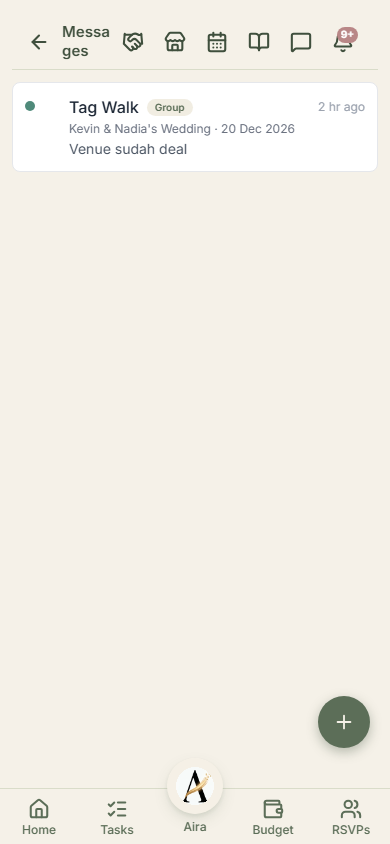
The message icon in the page header opens Messages; when something is unread, the icon wears a numbered badge (9+ past nine). The list puts active conversations first, then a collapsible "Archived (n)" section; groups without an event carry a "Global" label, and a red dot marks what you have not read. Tap a row to open that conversation.
Start a one-on-one conversation
The "Chat" button appears where the business happens: on your vendor's booking request card and on the organizer banner at Home. Tap it and the conversation with that person opens right away, with the event summary (date, venue, guest count) at its head. Until the booking is confirmed, a banner at the top of the thread reminds you that contact details stay hidden. In the Messages list, vendors see their own reminder: reply within 24 hours, because couples tend to pick the vendor who responds first.
Create a group chat
The round "Create a group chat" button on Messages opens a short sheet: name the group (up to 80 characters), pick the event, then invite the people involved in it. There are two kinds: an "Event group" for one event's team, and a "Global group" whose members join through a QR code or link with no event attached. An event group holds up to 30 members; a global group 50. As the group owner you can rename it, add or remove members, and mint QR invite codes with an expiry (1 hour, 24 hours, 7 days, or no limit) plus a cap on how many people may join. Leaving a group that still has other members means picking who takes over as owner.
Tag budget items, tasks, or guests inside a message
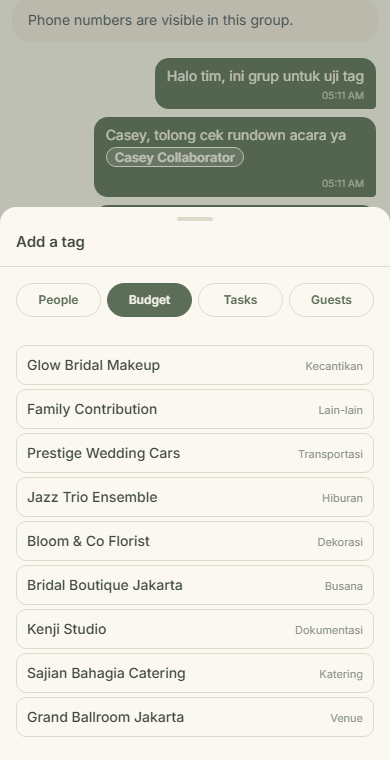
Next to the typing box sits the "Add a tag" button. The "Add a tag" sheet has People, Budget, Tasks, and Guests tabs; the Budget, Tasks, and Guests tabs need an event, so global groups only get People. Pick an item: Datella drops a small code (say @r3:) at your cursor and places its chip below the typing box, ready to remove before sending. One message carries up to 8 tags, and a message cannot consist of tags alone. Once sent, chips render inside the text: tap a Budget, Tasks, or Guests chip to jump straight to that list on the conversation's event.
Send photos and documents
The attach button takes photos and documents up to 10 MB each; the types are photos, PDF, DOCX, and XLSX. A photo or document cannot carry tags: if your draft still has tags, Datella asks "Send without tags?" and removes them once you confirm. When your account storage is full, file sending stops until you clear some space.
Understand who sees what
Two privacy rules work on their own. Phone numbers show as dots until the booking is confirmed, then appear by themselves; in a group, the masking lifts once every vendor member has a confirmed booking; and in global groups phone numbers are always masked. Tags follow per-person permissions: a budget chip only renders for people with budget access, a guest chip for people with guest access, and so on. If some of your chips are invisible to other members, Datella tells you through a notice reading "Some tags aren't visible to all members". A deleted item keeps marking its spot with a "deleted" chip, so the message still reads in context.
Block or report
The conversation menu has "Block conversation": once blocked, neither side can send, and you can unblock any time. The "Report" button sends a report to the Datella team for review; the other side is not told, and reporting does not block the conversation.
Common questions
Why does the phone number show only dots?
That is booking masking: the number stays hidden until the booking is confirmed, then appears on its own with nothing to do. In a group, the masking lifts once every vendor member has a confirmed booking. In global groups numbers are always masked; share contacts in person or through a booking.
Why is there a chip that says "deleted"?
That is what remains of a tag pointing at an item that was removed, say a task cleaned off the checklist. Your message is not deleted; the chip only keeps the context, so a reader knows an item once sat tagged at that spot.
Why can't other members see my tags?
Tags follow per-person permissions: a budget chip only renders for people with budget access on that event, a guest chip for people with guest access. The message still arrives whole; only the chips they are not allowed to see differ. You are always told through an on-screen notice, so nobody walks away with the wrong idea.
How many tags fit in one message?
Up to 8, and a message cannot consist of tags alone: write the sentence, then place the tags. When the quota is full, the tag button goes inactive until you remove a chip from the draft.
Try Datella free — sign up in under a minute.
Start free