
How to hand check-in to ushers without sharing your account
You never lend your password to the cousin working the door. Create one link per person, send it over WhatsApp, and they scan guests from their own phone. When the party ends, revoke the link and it dies instantly.
Prerequisites
- A guest list in place
- Ushers with a phone and internet (Chrome recommended for the camera)
Open "Ushers" from the invitation tools
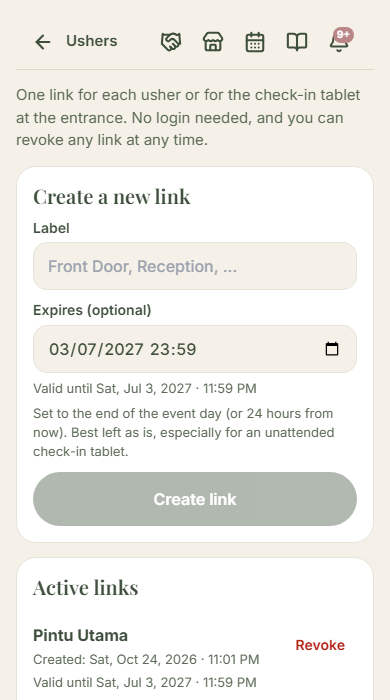
From the event page, open the invitation tools and pick Ushers. A short intro sets expectations: one link per usher or entrance tablet, no login, revocable at any time. The creation form is deliberately small: a Label, an Expiry, then "Create link". If your event has one or more booths, one extra choice appears: bind the link to the main door only, or to a specific booth — that usher can then scan only their own booth's guests.
Name the link, keep the auto-filled expiry
The label is free text, "Front Door" or the usher's name, so the link list stays readable. "Expires (optional)" comes pre-filled to the end of the event day; leave it, especially for a tablet left unattended, because the link then dies on its own. If your event uses entry limits, a "May admit guests past the limit" checkbox appears here too, and it can only be set at creation.
Send the link while it is on screen
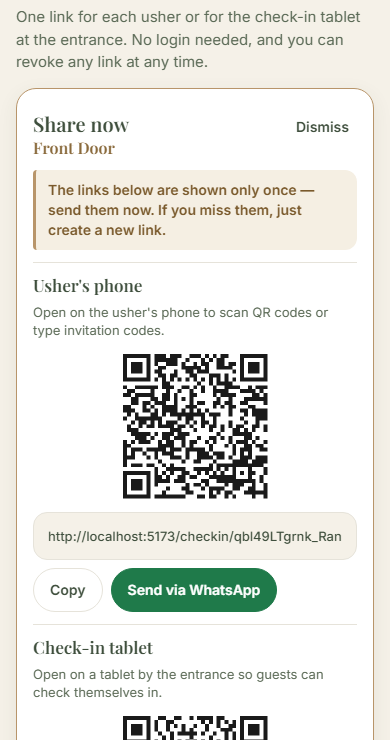
"Create link" reveals a card with two variants: "Usher's phone" for someone working the crowd, and "Check-in tablet" for a self-service kiosk at the entrance. Each has a QR, a "Copy" button, and "Send via WhatsApp". While the page stays open the card can be collapsed and reopened; after the page or card is closed there is no way back to it. Miss it and the move is to create a new link.
Know what an usher can and cannot do
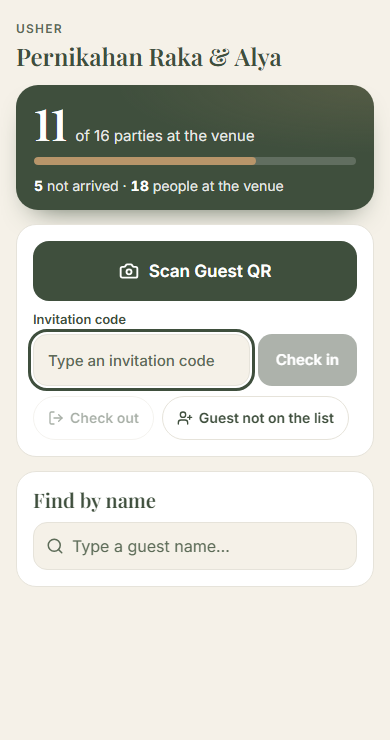
On their phone the usher gets a compact page marked "Usher": a "Scan Guest QR" button, an "Invitation code" field, "Check in" and "Check out", plus "Find by name" if you allow it. What stays out of reach: settings, guest data beyond the door view, voiding someone else's scan (their own last scan only), and every other event. A revoked or expired link fails closed with a message telling the holder to ask for a new one.
Revoke links when the day is done
In the active-links list, "Revoke" disconnects the usher or tablet using it, instantly, after a confirmation dialog. Revoked links cannot be re-enabled; need it again, mint a fresh one. There is no cap on active links, so one per door plus a tablet is normal.
Common questions
Do ushers need the app or an account?
Neither. The link opens in their phone's browser and works signed-out. That is also why revoking after the event matters: whoever holds the link can scan.
Can I rotate a link without revoking it?
There is no rotation. The pattern is revoke and re-mint: the old link dies immediately and the new one gets a different code.
What guest data does an usher see?
Names and check-in state, plus find-by-name results if you enable it. Phone numbers, emails, notes, and all event settings stay invisible from an usher link.
We have two entrances. Now what?
Create one labeled link per door. Your own console merges every door live, so you still watch one total from anywhere.
Try Datella free — sign up in under a minute.
Start free