
How to import a guest list from Excel or CSV
A guest list you have kept in Excel for months can move into Datella in one go. The one rule that matters: one row per family or invitation card, not per person. A preview holds your hand before anything is saved.
Prerequisites
- An event already created
- The list as a CSV (from Excel: Save As, pick CSV)
- Write access to the guest list
Download the template first
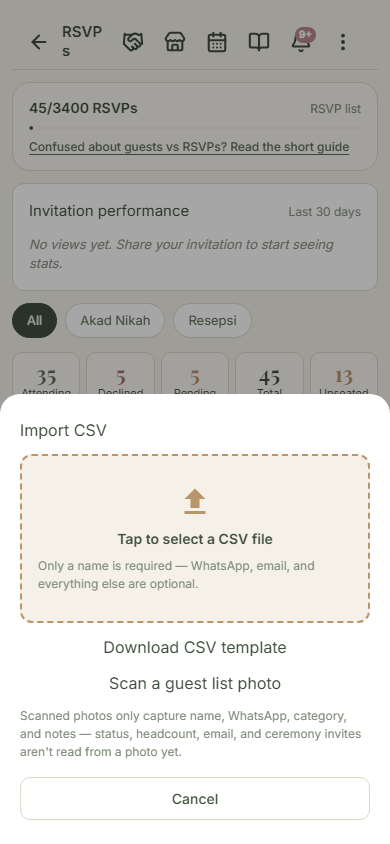
From the RSVPs list, tap "Import CSV", then "Download CSV template". It holds the columns Datella recognizes plus two example rows. You do not have to use it; a file of your own works as long as the column names are recognized, and the names are forgiving (step three explains).
Tidy the file: one row, one invitation
Fill the guest column with a family name such as "Keluarga Bapak Hendra", not one row per person. Old list kept per person? Tidy it in Excel first: merge each family into one row and put the headcount in the invited-count column; a guest invited alone stays as their own single row, which is fine. The other columns are free to fill: Telepon (phone, international format without the plus, 6281234567890), Email, Kategori (category), Status, counts for invited and attending, and notes. If your event uses separate ceremonies, the template adds a "Diundang ke: <ceremony>" (invited to) column per ceremony, filled with yes or no.
Your old columns are probably recognized too
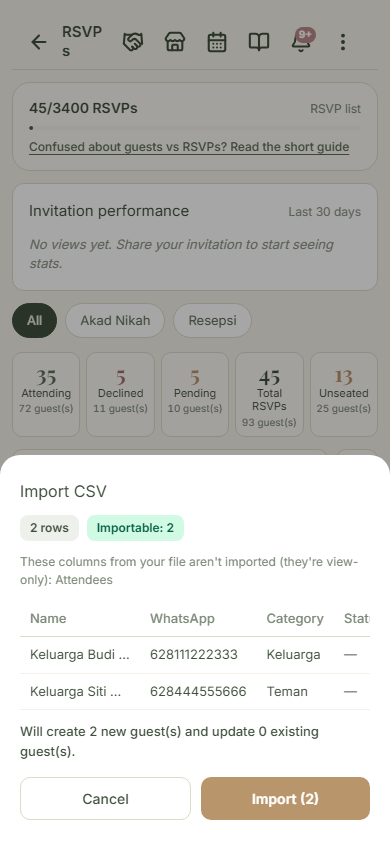
Datella accepts several popular column names: the name column can be "Nama", "Name", "Party", or "Tamu"; phone can be "WhatsApp", "Phone", or "No telepon"; status can be "Hadir", "attending", "tidak hadir", or "daftar tunggu". Only the name column is required. Columns that come from a Datella export but are never re-imported (the family member list, check-in times, and their kin) are named one by one in the preview; anything else unrecognized is skipped silently, and none of it fails the import.
Pick the file and read the preview
After choosing the file, a preview appears before anything is saved: the row count, which rows match existing guests, and the first five rows. Datella matches existing guests by entry code (a short per-guest code), phone, or email. When something matches, tick "Update existing guests" so that row updates the old record instead of creating a duplicate.
Import and check the result
Tap the import button and wait for the summary. Problem rows, an empty name or an unknown status for instance, are skipped and reported one by one; valid rows still land. A file may mix good and bad rows, and you never have to start over.
Common questions
Must I use the Datella template?
No. The template is a convenience. Any file works as long as it has a name column, and column names are matched against a forgiving alias list ("Nama", "Name", "Party", "Tamu", and the like).
What if the same guest is listed twice?
The preview detects repeats by entry code, phone, or email, then offers to update the existing record. Duplicates inside one file are handled too: the second identical row is skipped.
Can I import straight from Google Sheets?
Not directly. Download it as CSV first (File, Download, CSV) and import that file. The same applies to Excel: save as CSV, not xlsx.
Does CSV import cost AI points?
No, CSV import is free and uses no points. Points only apply to the other route: photographing a handwritten list for automatic reading.
Try Datella free — sign up in under a minute.
Start free