
How to scan a paper guest list with one photo
The guest list that matters often lives on paper: your mum's notebook, the caterer's control sheet, the 2019 Excel printout. Datella reads a photo of it, turns the lines into rows you can review, then deletes the photo. You still check the result: scanning saves typing, it does not replace your eyes.
Prerequisites
- An event already created
- At least 5 AI points in your balance (new accounts start with 25)
Photograph the list from inside the app
Open the RSVP list, tap "Import", then in the import sheet tap "Scan a guest list photo". The camera opens straight away — same path in the Android app and in a phone browser. Keep the paper as flat as you can: no curling, even light, and one column of names per shot reads better than two cramped ones.
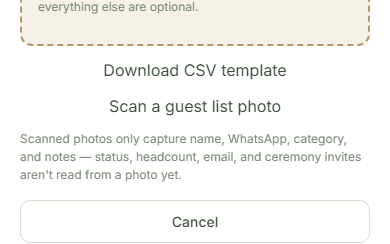
Approve the point spend
Before scanning, Datella asks "This scan costs 5 points — you have [balance]. Continue?". It is five points per photo, however many lines the photo holds. A failed scan refunds the points in full.
Check the rows before importing
The result opens in the same preview sheet a CSV import uses. The preview is for checking only: the first five rows are shown as-is and cannot be edited there — misread names are corrected after import, from the guest's row in the list. A photo only captures name, WhatsApp, category, and notes; status, party size, email, and per-ceremony invites are not read from a photo, so fill those in afterwards. Read the names closely before continuing: the name is what ties each guest's personal link to them.
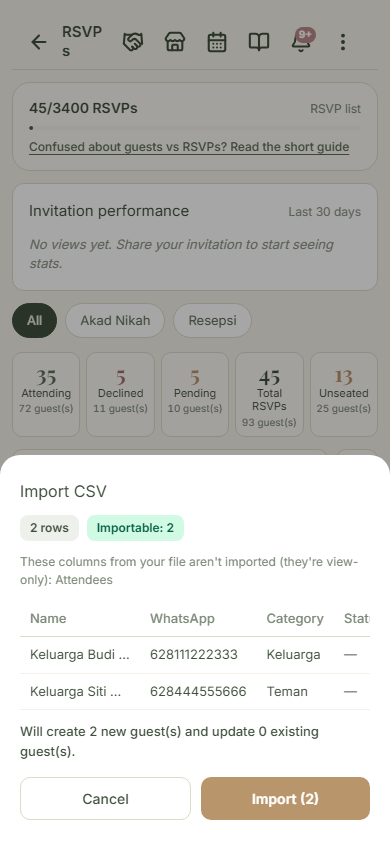
Import as usual
Tap import and the rows join your guest list under the same rules as a CSV import: at most 300 new rows per import, and names that already exist get updated rather than duplicated. The CSV import tutorial carries the full rule set.
When the photo will not read
Two failures dominate: the writing does not read at all, or not a single name is recognized. Both surface "Couldn't read this photo — try a clearer shot", and your points come back. Move closer or find better light; if the page still refuses, type the remainder by hand — ten names type faster than three retakes.
Common questions
How many names can one photo hold?
Scanning has no separate limit, but the preview enforces the import cap: at most 300 new rows per import. For long lists, split across several photos and import in batches.
Does it read handwriting?
Usually, when it is tidy. Neat block letters and marker ink read almost every time; fast joined-up script often misreads. However the scan goes, review the rows before importing.
Does Datella keep the photo?
No. Once read, the photo is deleted from storage; what remains is the resulting rows in your guest list.
What if my points run short?
Datella refuses before scanning with "Not enough AI points for this scan" and charges nothing. Points can be topped up from the plan screen in your profile.
Try Datella free — sign up in under a minute.
Start free